DECLARE
@product_name VARCHAR(MAX), @list_price DECIMAL; DECLARE cursor_product CURSOR FOR SELECT product_name, list_price FROM production.products; OPEN cursor_product; FETCH NEXT FROM cursor_product INTO @product_name, @list_price; WHILE @@FETCH_STATUS = 0 BEGIN PRINT @product_name + CAST(@list_price AS varchar); FETCH NEXT FROM cursor_product INTO @product_name, @list_price; END; CLOSE cursor_product; DEALLOCATE cursor_product;Thursday, December 03, 2020

Thursday, October 08, 2020
Calling REST API in C# (Read JSON Data)
How to post JSON to a server using C#?
OR
Calling REST API in C# (Read JSON Data)
Sample Code C#:
var httpWebRequest = (HttpWebRequest)WebRequest.Create("http://url");
httpWebRequest.ContentType = "application/json";
httpWebRequest.Method = "POST";

using (var streamWriter = new StreamWriter(httpWebRequest.GetRequestStream()))
{
    string json = "{\"user\":\"test\"," +
                  "\"password\":\"bla\"}";

    streamWriter.Write(json);
}

var httpResponse = (HttpWebResponse)httpWebRequest.GetResponse();
using (var streamReader = new StreamReader(httpResponse.GetResponseStream()))
{
    var result = streamReader.ReadToEnd();
}
//*************************************************************************//
 var httpWebRequest = (HttpWebRequest)WebRequest.Create("YOU API URL");
            httpWebRequest.ContentType = "application/json";
            httpWebRequest.Method = "POST";
            httpWebRequest.Headers.Add("APIKey", "111111111111111111");
            using (var streamWriter = new StreamWriter(httpWebRequest.GetRequestStream()))
            {
                string json = JsonConvert.SerializeObject(new
                {
                    appId = "XXXX",
                    vehicleRequestChoice = new
                    {
                        plateDetails = new
                        {
                            plateCategory = "Private",
                            plateCode = "T",
                            plateNo = "11111"
                        }
                    }
                }
                );
                streamWriter.Write(json);
            }

            var httpResponse = (HttpWebResponse)httpWebRequest.GetResponse();
            using (var streamReader = new StreamReader(httpResponse.GetResponseStream()))
            {
                if (httpResponse.StatusCode == HttpStatusCode.OK)
                {
                    var result = streamReader.ReadToEnd();
                    var testobj = JsonConvert.DeserializeObject(result);
                    return testobj;
                }


            }
//***************** END ******************//Tuesday, September 08, 2020
SQL SERVER – Query to Find Column From All Tables of Database
One question came up just a day ago while I was writing SQL SERVER – 2005 – Difference Between INTERSECT and INNER JOIN – INTERSECT vs. INNER JOIN.
How many tables in database AdventureWorks have column name like ‘EmployeeID’?
It was quite an interesting question and I thought if there are scripts which can do this would be great. I quickly wrote down following script which will go return all the tables containing specific column along with their schema name.
USE AdventureWorks
GO
SELECT t.name AS table_name,
SCHEMA_NAME(schema_id) AS schema_name,
c.name AS column_name
FROM sys.tables AS t
INNER JOIN sys.columns c ON t.OBJECT_ID = c.OBJECT_ID
WHERE c.name LIKE '%EmployeeID%'
ORDER BY schema_name, table_name;
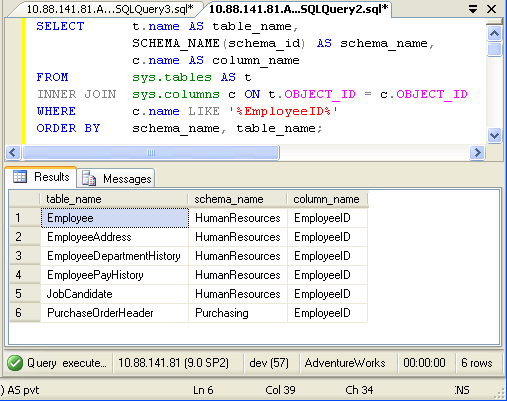
In above query replace EmployeeID with any other column name.
SELECT t.name AS table_name,
SCHEMA_NAME(schema_id) AS schema_name,
c.name AS column_name
FROM sys.tables AS t
INNER JOIN sys.columns c ON t.OBJECT_ID = c.OBJECT_ID
ORDER BY schema_name, table_name;

If you want to find all the column name from your database run following script. You can down any condition in WHERE clause to get desired result.
Sunday, January 05, 2020
SQL SERVER Clean String function
SQL SERVER Clean String function
Create Function [dbo].[CleanString] (@input nvarchar(max))
Returns nvarchar(max)
As
Begin
declare @a nvarchar(max)
declare @b nvarchar(max)
Set @a=@input
Set @b = Replace(REPLACE(@a, SUBSTRING(@a, PATINDEX( '%[,~,@,#,/,\,(,),$,%,&,*,(,),+,.,]%', @a), 1 ),''),'-','')
Set @a=@b
Set @b = Replace(REPLACE(@a, SUBSTRING(@a, PATINDEX( '%[,~,@,#,/,\,(,),$,%,&,*,(,),+,.,]%', @a), 1 ),''),'-','')
Set @a=@b
Set @b = Replace(REPLACE(@a, SUBSTRING(@a, PATINDEX( '%[,~,@,#,/,\,(,),$,%,&,*,(,),+,.,]%', @a), 1 ),''),'-','')
Set @a=@b
Set @b = Replace(REPLACE(@a, SUBSTRING(@a, PATINDEX( '%[,~,@,#,/,\,(,),$,%,&,*,(,),+,.,]%', @a), 1 ),''),'-','')
return @b
End
Call Function on Select statement :
Select top 1 DataEntryDate , dbo.CleanString('A-SMN~dfs&d-fdsh/adsfdsf/sdfsdf\sdf') from TableName
Create Function [dbo].[CleanString] (@input nvarchar(max))
Returns nvarchar(max)
As
Begin
declare @a nvarchar(max)
declare @b nvarchar(max)
Set @a=@input
Set @b = Replace(REPLACE(@a, SUBSTRING(@a, PATINDEX( '%[,~,@,#,/,\,(,),$,%,&,*,(,),+,.,]%', @a), 1 ),''),'-','')
Set @a=@b
Set @b = Replace(REPLACE(@a, SUBSTRING(@a, PATINDEX( '%[,~,@,#,/,\,(,),$,%,&,*,(,),+,.,]%', @a), 1 ),''),'-','')
Set @a=@b
Set @b = Replace(REPLACE(@a, SUBSTRING(@a, PATINDEX( '%[,~,@,#,/,\,(,),$,%,&,*,(,),+,.,]%', @a), 1 ),''),'-','')
Set @a=@b
Set @b = Replace(REPLACE(@a, SUBSTRING(@a, PATINDEX( '%[,~,@,#,/,\,(,),$,%,&,*,(,),+,.,]%', @a), 1 ),''),'-','')
return @b
End
Call Function on Select statement :
Select top 1 DataEntryDate , dbo.CleanString('A-SMN~dfs&d-fdsh/adsfdsf/sdfsdf\sdf') from TableName
Thursday, October 24, 2019
Post data and get jason C#
string url = "www.YOURL_URL.com";
string soapResult = "";
WebClient cl = new WebClient(); // create web client
var data = cl.DownloadString(url); // Sending request to find web api REST service resource using HttpClient
JObject currencies = JObject.Parse(data);
var currency = currencies.SelectToken("TradeLicense.trade_name_en");
soapResult = currency.ToString();
string soapResult = "";
WebClient cl = new WebClient(); // create web client
var data = cl.DownloadString(url); // Sending request to find web api REST service resource using HttpClient
JObject currencies = JObject.Parse(data);
var currency = currencies.SelectToken("TradeLicense.trade_name_en");
soapResult = currency.ToString();
Tuesday, August 20, 2019
Describe table structure with MS SQL Server
This is the second in a series of three posts about using the sp_tables, sp_columns and sp_stored_procedures stored procedures with Microsoft SQL Server databases. This post is about sp_columns which is used to describe the table structure of a SQL Server table.
The simplest way to use sp_columns to show the columns and related information about a SQL Server table is to execute the stored proecedure passing it the table name like so:
You can read more information about what each column returned means in the MSDN documentation about this stored procedure. The sp_columns stored procedure can take additional arguments to the table name. You can also pass the table owner, table qualifier (i.e. the database name), column name and the ODBC version used. The table owner and column name parameters support wildcard pattern matching, so you can use % and _ For example, if you only wanted to query the "foo" column from the above example, you would do this:
If you wanted to query all columns which started with the letter "a" you could do the following:
That's a basic overview of the sp_columns stored procedure for describing a table structure in Microsoft SQL Server. The final post in this series (in a week's time) will look at sp_stored_procedures to get a list of stored procedures available.
Sunday, July 21, 2019
Class for User Register - MVC
public class UserRegisterModel
{
[DisplayName("User Name")]
[Required(ErrorMessage="Name can not be blank")]
public string Name { get; set; }
[Required(ErrorMessage = "Password can not be blank")]
[StringLength(6,ErrorMessage="Password should be equal or less than 6 character")]
public string Password
{ get; set; }
[Required(ErrorMessage = "Email can not be blank")]
[RegularExpression(@"\w+([-+.']\w+)*@\w+([-.]\w+)*\.\w+([-.]\w+)*",ErrorMessage="Email is not
Valid")]
public string Email { get; set; }
Monday, April 29, 2019
Windows 10 How to send a command line message to another PC on the network?
How to send a command line message to another PC on the network?
1. Start command prompt (cmd) – type cmd in the searchbox and run the app
2. Type the command as follows:
msg /SERVER:DestinationPC * /TIME:60 “This is the message to be sent to a PC named DestinationPC.”
– Replace DestinationPC with your destination PC name (see your computer network for the list of computers in that network if you don’t know the name pf the PC you are trying to send the message to.
– Replace the value of TIME with desired seconds before the message closes
– Replace the text between quotation marks with the message text you want to be displayed.
3. Hit enter and voila, the message is sent.
This is the relapse commend on XP Windows net send
1. Start command prompt (cmd) – type cmd in the searchbox and run the app
2. Type the command as follows:
msg /SERVER:DestinationPC * /TIME:60 “This is the message to be sent to a PC named DestinationPC.”
– Replace DestinationPC with your destination PC name (see your computer network for the list of computers in that network if you don’t know the name pf the PC you are trying to send the message to.
– Replace the value of TIME with desired seconds before the message closes
– Replace the text between quotation marks with the message text you want to be displayed.
3. Hit enter and voila, the message is sent.
This is the relapse commend on XP Windows net send
Monday, February 04, 2019
How to add HTML codes in Blogger Posts
If you wants to show HTML code without any customization in your blog then just use this site: SimpleCode. This method is too easy to use and it shows code in a very simple way.
Use the below
http://vault.simplebits.com/cgi-bin/simplecode.pl?mode=process
Use the below
http://vault.simplebits.com/cgi-bin/simplecode.pl?mode=process
Jquery Start count and Brack timer clearTimeout()
The below JQuery Jquery Start count and Brack timer clearTimeout()
<!DOCTYPE html>
<html>
<body>
<button onclick="startCount()">Start count!</button>
<input type="text" id="txt">
<button onclick="stopCount()">Stop count!</button>
<p>
Click on the "Start count!" button above to start the timer. The input field will count forever, starting at 0. Click on the "Stop count!" button to stop the counting. Click on the "Start count!" button to start the timer again.
</p>
<script>
var c = 0;
var t;
var timer_is_on = 0;
var myCounter = 0;
function timedCount() {
document.getElementById("txt").value = c;
c = c + 1;
t = setTimeout(timedCount, 1000);
myCounter = myCounter + 1
if(myCounter == 4)
{
c = 0;
t;
timer_is_on = 0;
myCounter = 0;
clearTimeout(t);
timer_is_on = 0;
}
}
function startCount() {
if (!timer_is_on) {
timer_is_on = 1;
timedCount();
}
}
function stopCount() {
c = 0;
t;
timer_is_on = 0;
myCounter = 0;
clearTimeout(t);
timer_is_on = 0;
}
</script>
</body>
</html>
Subscribe to:
Posts (Atom)